Quick start
AlternativeText suggests alt text, longer descriptions and image text to help you describe images. AI drafts can miss details or invent them: review each draft against the image and its surrounding content before using it. You decide what a reader needs.
Open the Generator. Generator use requires an approved beta account; see invitation and sign-in help if you need access. You can read these guides without an account.
One image
Practise with the sample chart (invented data).
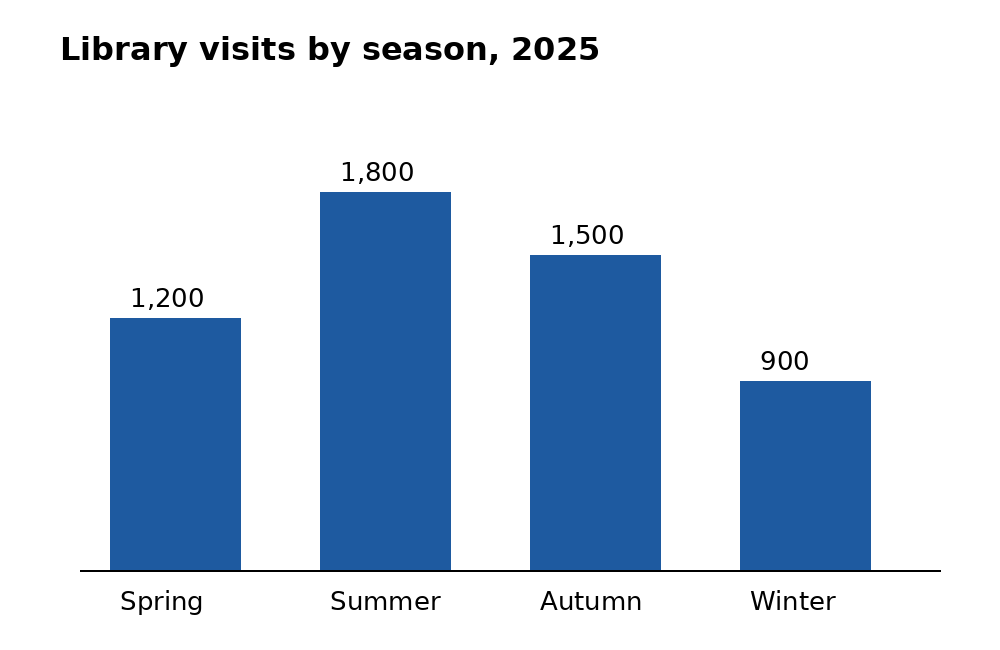
- Upload one JPEG, PNG or WebP image using Drop images or a PDF here, or click to upload. The focused workspace opens with an image preview.
- Check your settings, then select Analyze Image. A draft appears when the analysis finishes.
- Compare the draft with the image and its context. Edit Short alt text, Long description and Text in this image as needed, then select Mark reviewed.
- Use Copy Short to paste the short alt where it belongs, or Export JSON, Export CSV or Export Audit Report to keep a review record. Exports use your current edits.
Detailed tutorial: Analyze and review one image.
Multiple images
Try the sample chart and holiday-hours sign together.

- Upload two or more images. The batch workspace opens with the images queued.
- In Step 4 · Configure, check the shared settings. Under Run Analysis, select Analyze all. The queued images are analyzed with those settings.
- In Step 5 · Review, select each image in the queue, check and edit its draft, then select Mark reviewed for that image.
- In Step 6 · Export, download the current results using Export CSV, Export JSON, Export Audit Report or Export ZIP.
Changing a style after analysis does not regenerate batch results. Use the separate Regenerate action only when you want a new analysis of the whole batch; it replaces edits and clears Reviewed marks.
Detailed tutorial: Analyze several images.
Images in a PDF
Use the untagged sample PDF to practise discovery and classification. The separate tagged sample PDF is for comparing known Existing PDF Alt.
- Upload a PDF (up to 50 MB). In Step 2 · Prepare, wait for page previews and detected candidates. You can also draw a region or import a full page when needed.
- In Step 3 · Classify, decide which candidates need alt text, then select Apply candidate decisions to add eligible images to the review queue. Classification here is an intake decision, not an analysis result.
- Select Proceed to Step 4 · Configure when available. Check the queued images and shared settings in Step 4 before continuing.
- Under Run Analysis, select Analyze all. Applying candidate decisions is not an analysis request; analysis starts only when you select the analysis action.
- In Step 5 · Review, compare each draft with its image, check Existing PDF Alt when available, edit and Mark reviewed. Then use Step 6 · Export to download the reviewed text.
Detailed PDF tutorial · Regions and pages · Existing PDF Alt.
Start with Essentials
Essentials is the simpler starting review view: the draft fields, image classification and Reviewed mark. Full review shows additional guidance, raw detected text and standards checks. Switching views does not change your edits or review marks.
Essentials versus Full review.
Files and support
Images: JPEG, PNG or WebP, up to 5 MB each. PDFs: up to 50 MB. See Files and limits for batch and image-dimension details.
Need help? Email support@wcagcompliance.com.