PDF regions and pages
Beyond automatic discovery, you can import part of a page (a region) or a whole page as an image. This is useful when an image is not detected on its own — for example a chart drawn with vector graphics, or a scanned page.
Use the invented sample PDF to practise without confidential content. To practise moving around a long document, use the invented 62-page practice PDF.
Draw a region
- In Step 2 · Prepare, click and drag on a page preview to draw a box around the part of the page you want. There is no separate draw button; the hint above the previews says "or click-drag on a preview to draw a region".
- Below the previews, the button changes from Import selected region (unavailable until you draw) to Import selected region (page {n}). Select it to add the cropped region to the queue as its own image. Clear region removes the box without importing.
Open larger view
For precise work, select Open larger view under a page preview. The larger view lets you:
- move between pages with Previous page / Next page,
- click and drag to draw one or more regions before importing,
- import them with Import selected region (Import selected regions when there are several), or start again with Clear selection (Clear selections).
If you close the larger view or change pages with regions you have not imported, you are asked whether to discard them. Import first if you want to keep them.
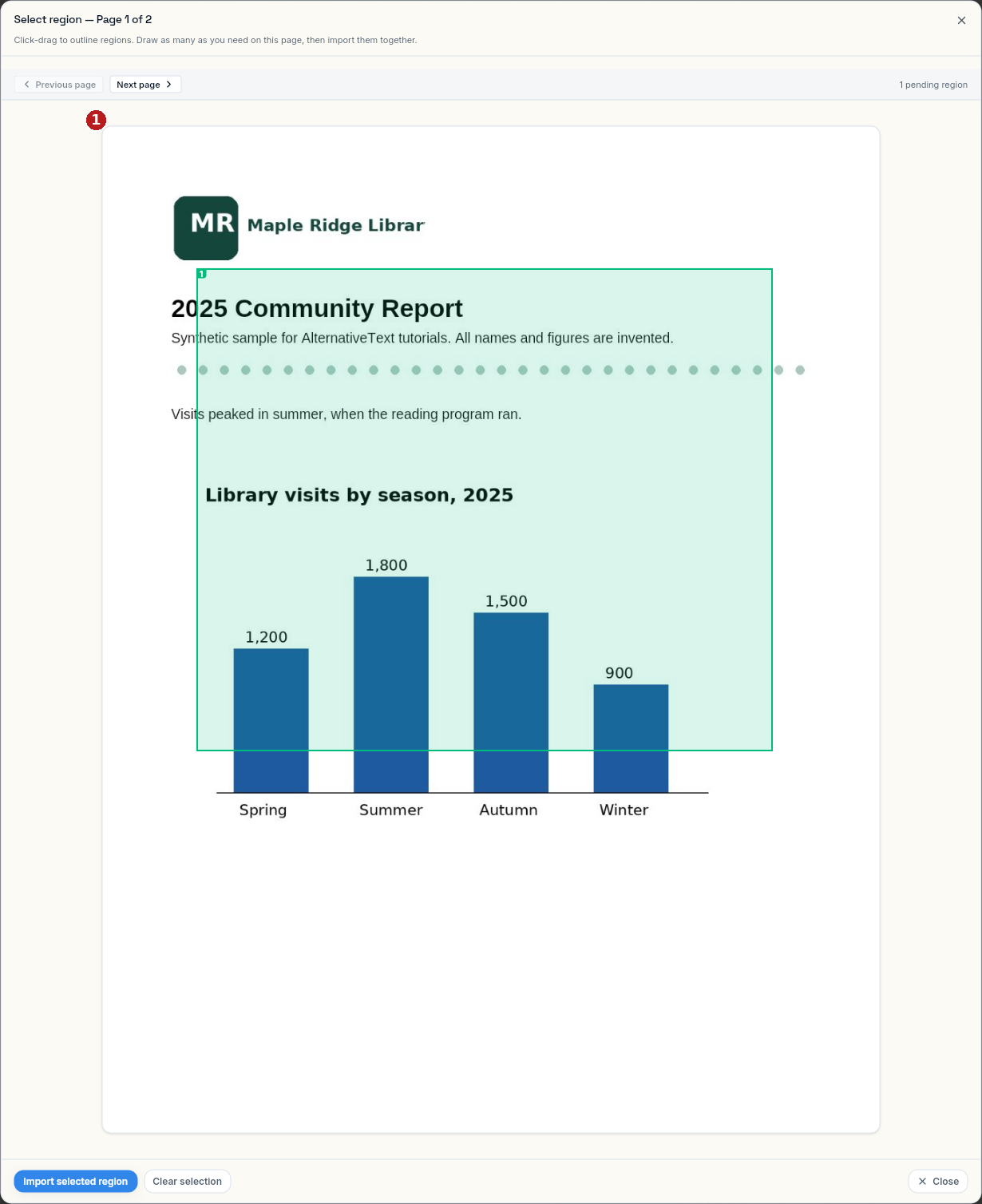 1 The outlined region will be imported as a separate image. Previous page / Next page are above the preview; Import selected region and Clear selection are below.
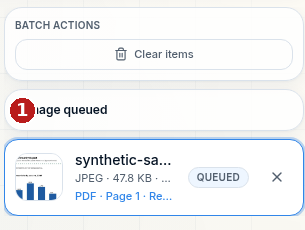 1 The cropped image is queued with a PDF page/region reference. Importing it does not start analysis. Select the row to inspect it; continue to Configure when ready.
Import whole pages
- Tick the Page {n} checkbox on each page you want, or use Select all / Clear for the visible pages.
- Select Import selected full pages ({count}). Each page becomes a full-page image in the queue.
Use full-page import for scanned documents where the whole page is effectively one image.
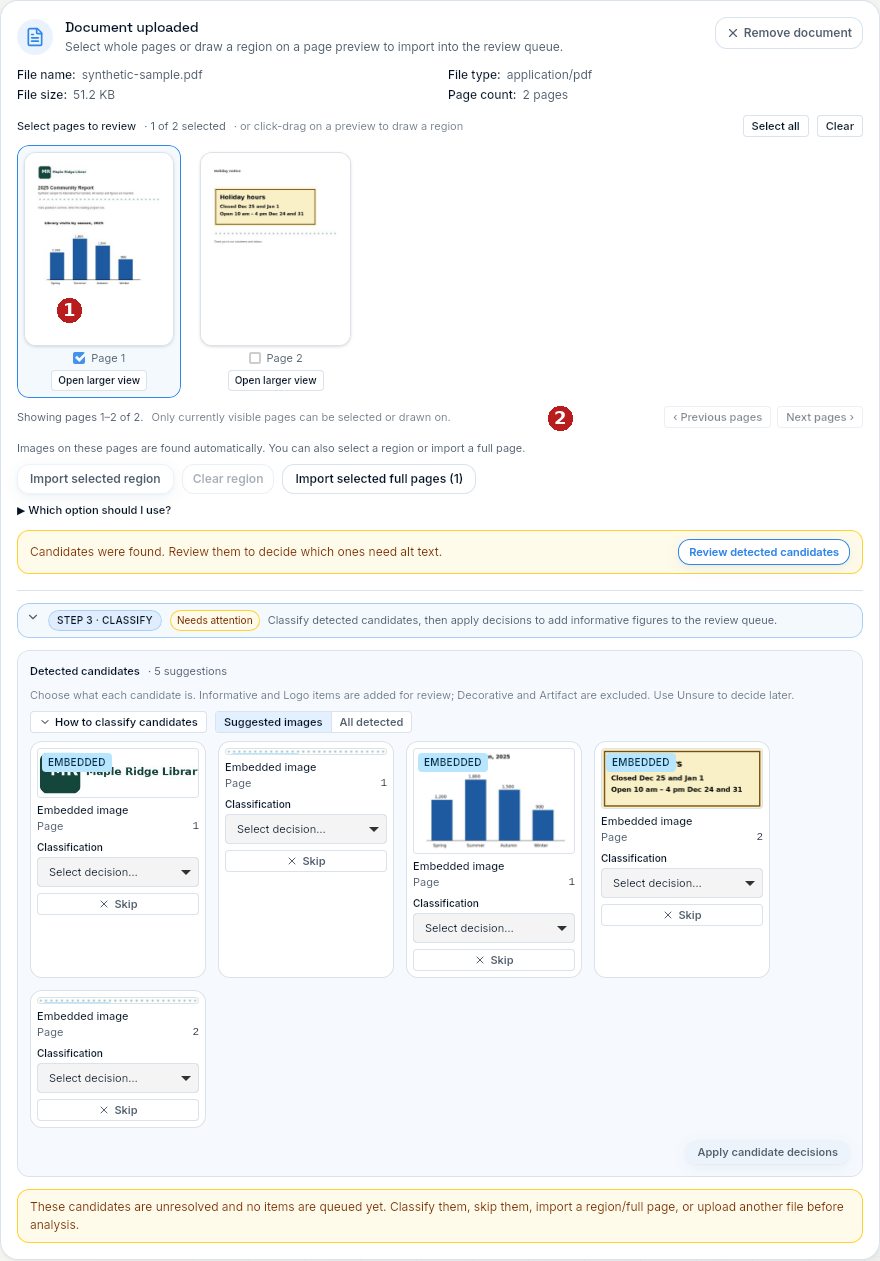 1 Tick Page 1. 2 Import selected full pages (1) adds that entire page to the queue; it does not apply the candidate decisions below.
Which option should I use?
The Which option should I use? disclosure in the Generator summarizes the choice: let automatic discovery find embedded images first, draw a region for part of a page, and import a full page when the whole page is the image. Imported regions and pages go through the same Classify, Configure, Review and Export steps as discovered images.
Move around a long PDF
The Generator shows three page previews at a time. It searches for images only on the pages you bring on screen. Opening the document does not search every page automatically. Pages you never view stay unsearched.
The examples below use the invented 62-page practice PDF (PDF download). Only pages 2, 9, 31 and 58 have images; page 9 has two.
Go to page
Type a page number under the page previews and select Go. The previews jump to that page and the next two. A blank entry, a number that isn't whole, or a page the PDF doesn't have shows a message, and the current pages stay on screen. The larger view has its own Go to page field.

Pages with candidates
The Pages with candidates box sits below Go to page. It lists each searched page where images were found. Pages with no images aren't listed.
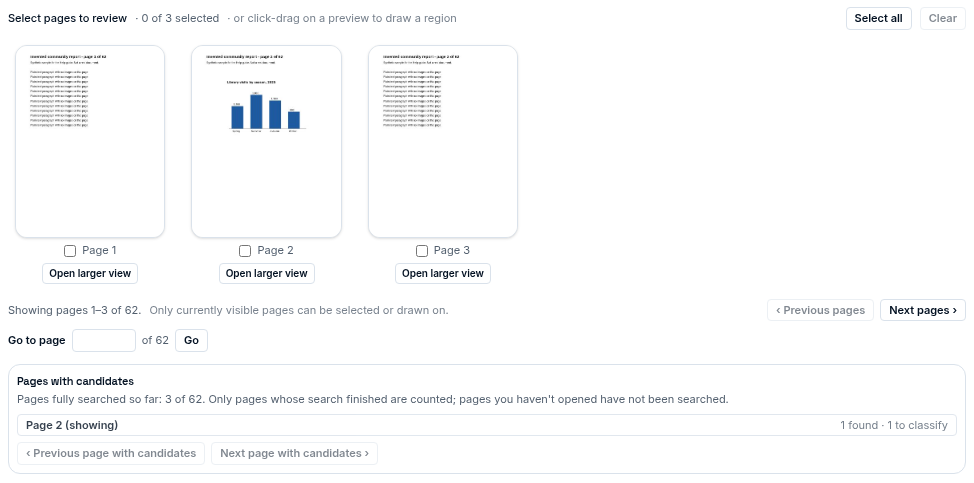 At the start, only pages 1 to 3 have been searched. Page 2 has one image.
What each entry means:
- (showing) — that page is among the previews on screen now.
- N found — how many images the search found on that page.
- N to classify — images on that page you haven't applied or skipped yet.
- N applied or skipped — images you've already handled. It appears next to "to classify" when a page is partly done.
- all handled — every image on that page has been applied or skipped.
- Search failed, or search limited — some images may be missing — the search didn't finish normally. Neither means the page has no images.
Pages fully searched so far counts only pages whose search has finished. The box says: "Only pages whose search finished are counted; pages you haven't opened have not been searched."
Only pages whose search has finished count toward the total. Opening the document does not search every page automatically.
Earlier pages stay in the list
When you move to later pages, earlier entries stay in the list even though their previews have left the screen. In this example, page 2's image was applied, one of page 9's two images was skipped, and then Go to page jumped to page 31.
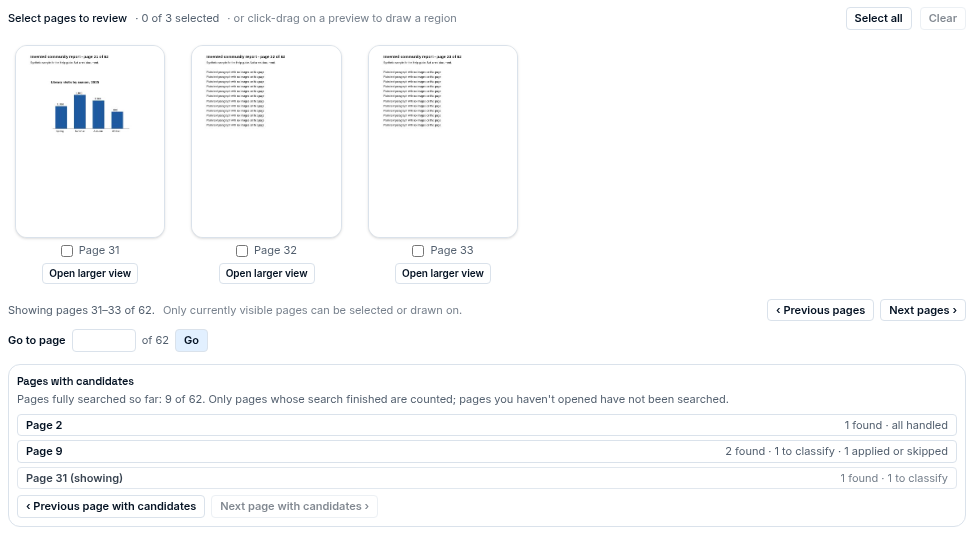 Pages 2 and 9 are still listed after jumping to page 31. Only the 9 pages actually viewed count as searched.
Go back to earlier candidates
Select a page in the list to show it again. You can also use ‹ Previous page with candidates and Next page with candidates ›. These skip pages that are already on screen or fully handled, so they take you to pages that still have images to classify.
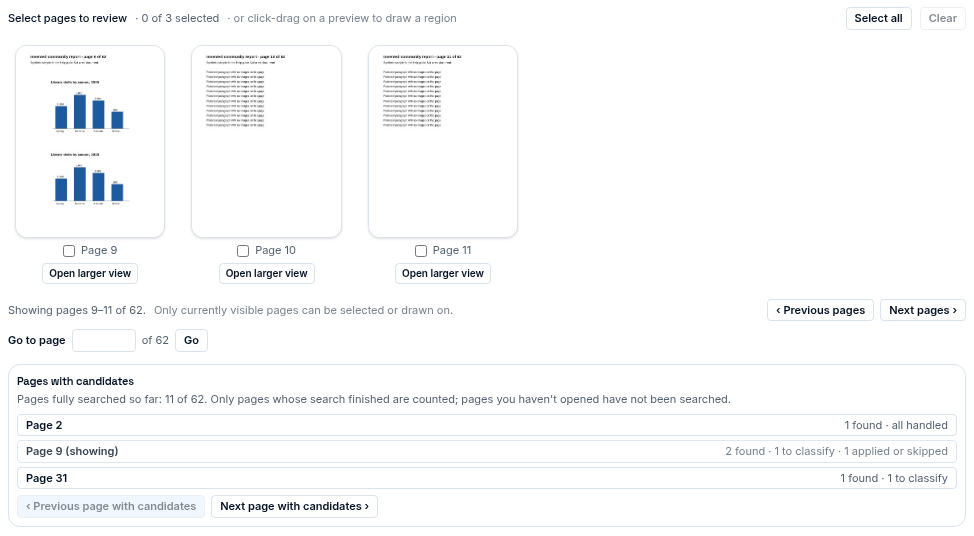 From page 31, Previous page with candidates skipped page 2 (all handled) and went to page 9. Pages 10 and 11 came on screen and were searched too.
On a narrow screen the same list stacks to fit:
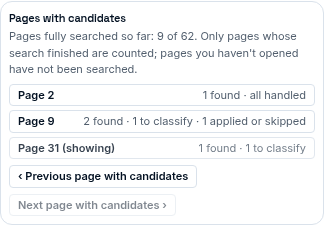
What keeps and clears the list
The list belongs to the document you're working on in this browser tab:
- It stays when you move between steps (for example Step 3 → Step 4 → Step 3).
- Remove document, replacing the document with a new upload, or starting over clears it. A new document starts with its own search.
- It isn't saved. Reloading the page or closing the browser clears it.
 After moving to Step 4 and back, the same entries and counts are still there.
Show on page
Select Review detected candidates to reach Step 3 · Classify. On the detected candidate's card, Show on page is directly below the Classification menu — not beneath the page preview.
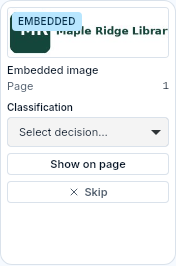 Show on page is between the Classification menu and Skip on the detected candidate's card.
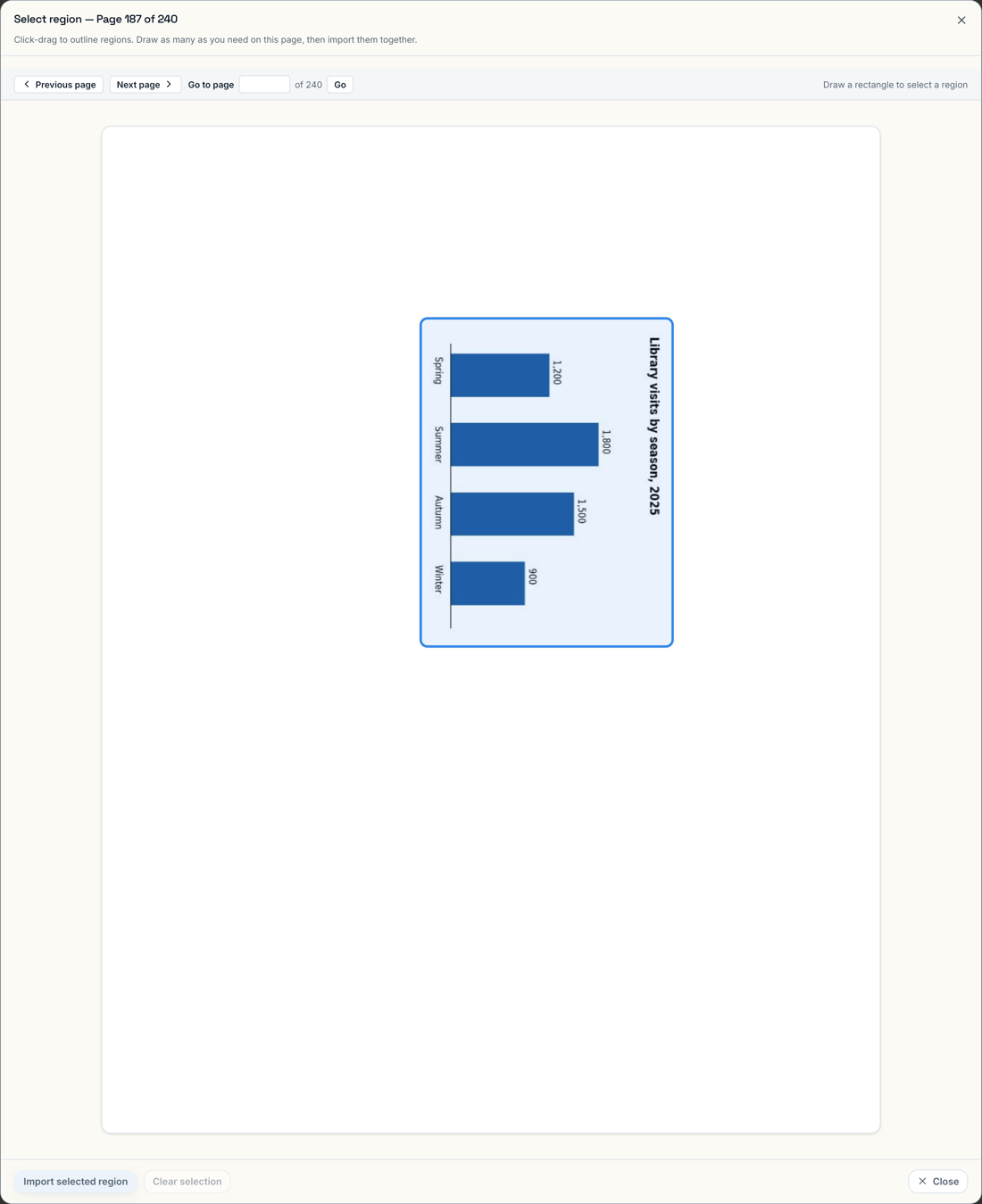
Show on page opens the larger page view with a blue rectangle around the detected image. The rectangle identifies the image's location; it is not a newly drawn selection. Press Escape to close the larger view and return keyboard focus to Show on page on the same card.
Moving between pages never removes queued items or your classification choices, and never starts analysis. Within the current document session, accumulated page coverage and candidate decisions also survive Step 3 → Step 4 → Step 3. This does not mean they survive reloading the page or closing the browser.
Apply candidate decisions keeps you in Step 3. Only Proceed to Step 4 · Configure moves you to Step 4; analysis does not start automatically.
Removing or replacing the document resets its page index — the record of pages searched so far and pages with candidates. A newly uploaded document starts with its own page search.