Analyze several images — Batch workspace
Analyze multiple standalone images together, then review each result. This is different from the PDF workflow: images do not need PDF preparation or candidate decisions.
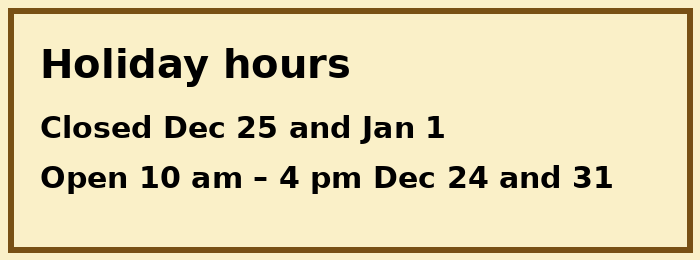
Use the invented chart, holiday-hours sign, and logo. You need beta access. JPEG, PNG and WebP are supported, up to 5 MB each; the batch upload allows 50 images on desktop or 10 on mobile.

1. Upload and check the queue
- Open the Generator and choose several images in Drop images or a PDF here, or click to upload.
- Two or more images open the batch workspace. It may open Configure automatically; select 1 Upload to return to the upload area.
- Add more using the upload area. The × beside a queue row removes that image.
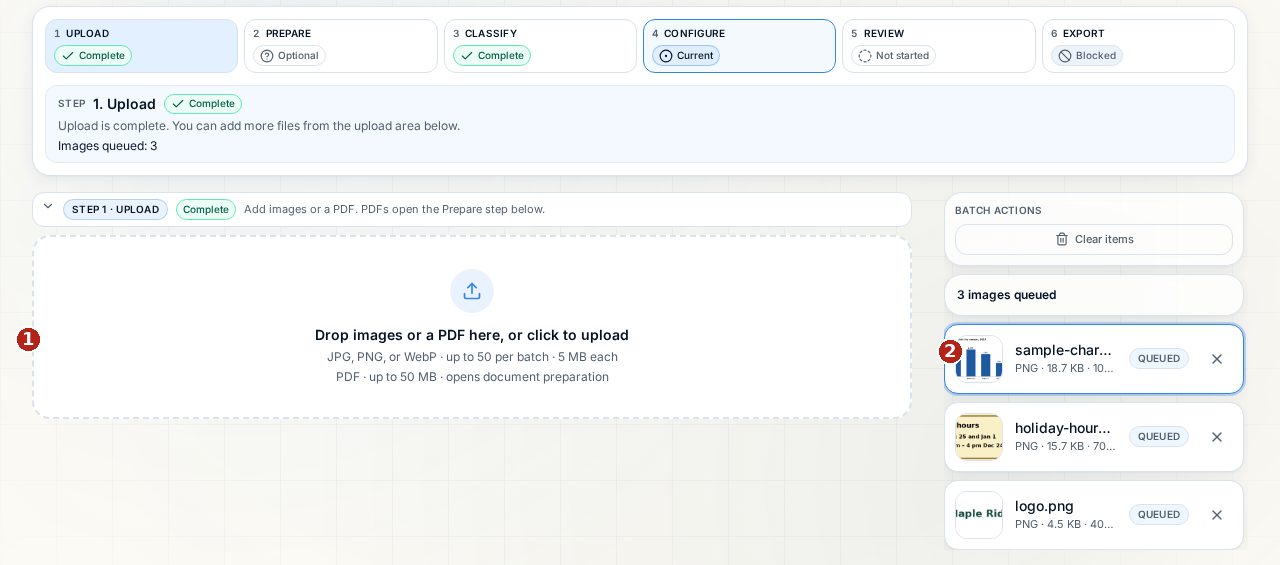
- Upload area — add the three sample images here.
- Queue — confirm all three filenames before analysis. Queued rows select an image; completed rows open its review.
2. Configure and analyze
Steps 2 Prepare and 3 Classify are for PDFs. Select 4 Configure or Proceed to Step 4 · Configure when offered.
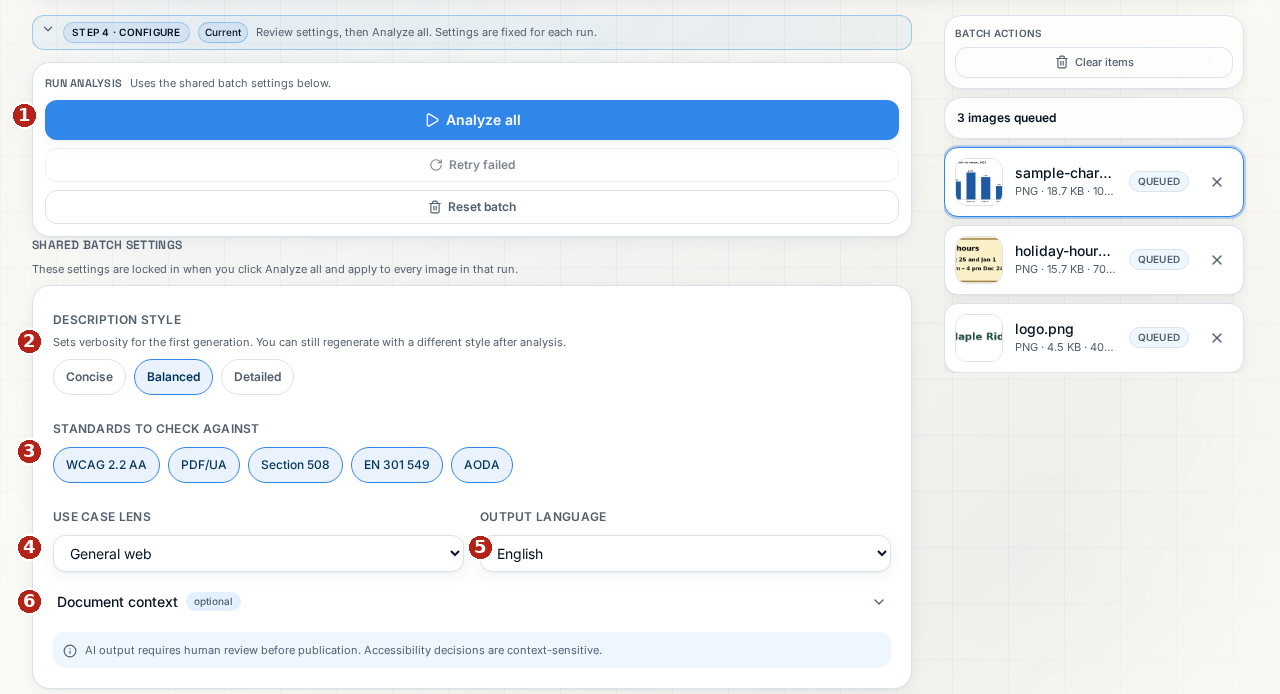
- Analyze all is the action button under the Run Analysis heading. It sends the images for AI analysis; up to four run at once. Cancel run is available during a run. Retry failed reruns only failures and is disabled when there are none.
- Description style — Concise, Balanced (default), Detailed. Controls the next run's level of detail.
- Standards to check against — WCAG 2.2 AA, PDF/UA, Section 508, EN 301 549, AODA; all selected by default. These select guidance, not certification.
- Use case lens — General web (default), Education, Government, Healthcare, E-commerce, Legal.
- Output language — English (default), Français, Español, Deutsch, Português.
- Document context — optional, initially closed and empty. Open it and add relevant surroundings, for example “Figures for a community library annual report.”
These settings apply to every image in the next run. They do not immediately rewrite existing results. There is no This may be decorative checkbox in batch settings.
3. Review each image
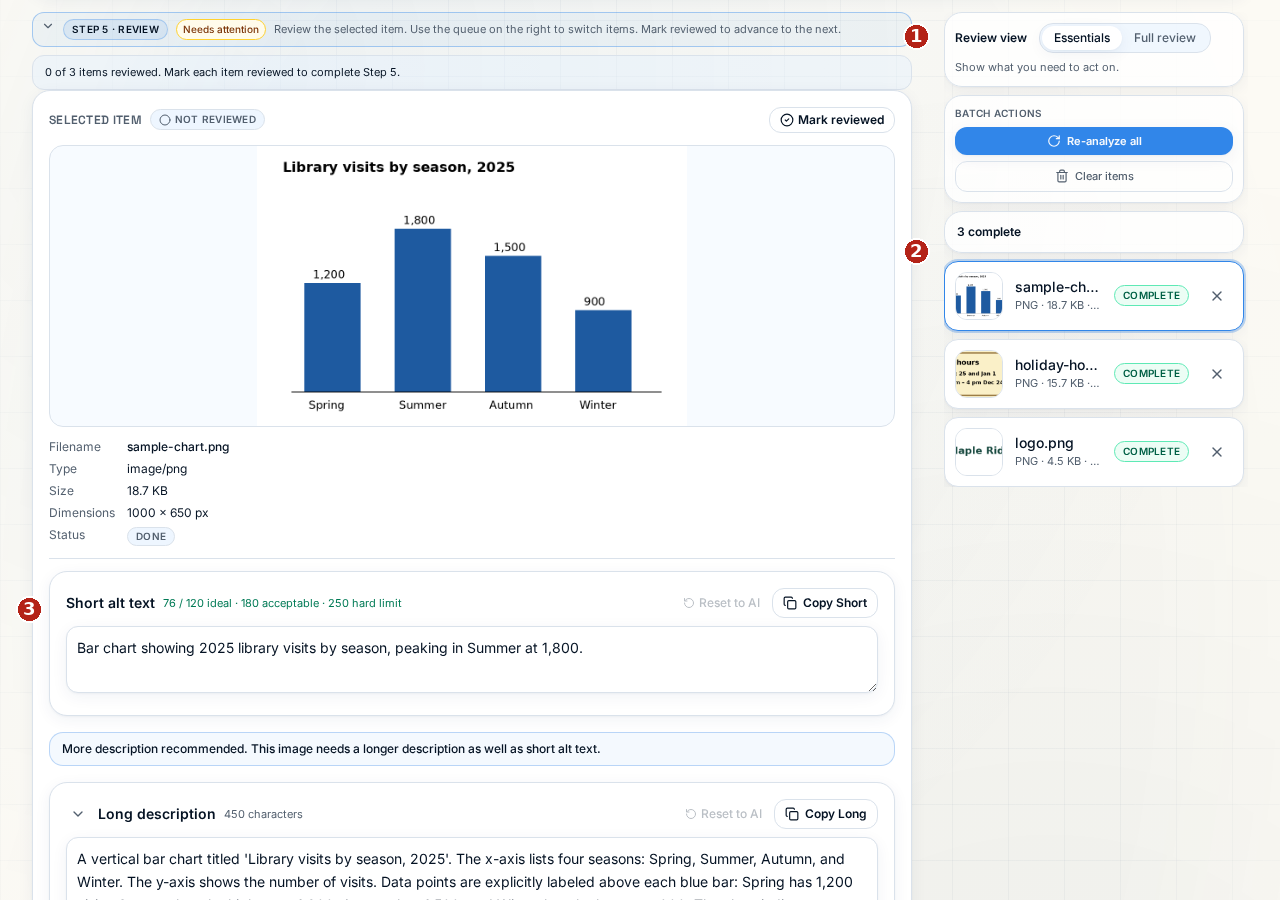
- Review view — Essentials or Full review changes presentation only.
- Queue — select a completed image to review it.
- Short alt text — edit the draft. Also check Long description and Text in this image against the actual image.
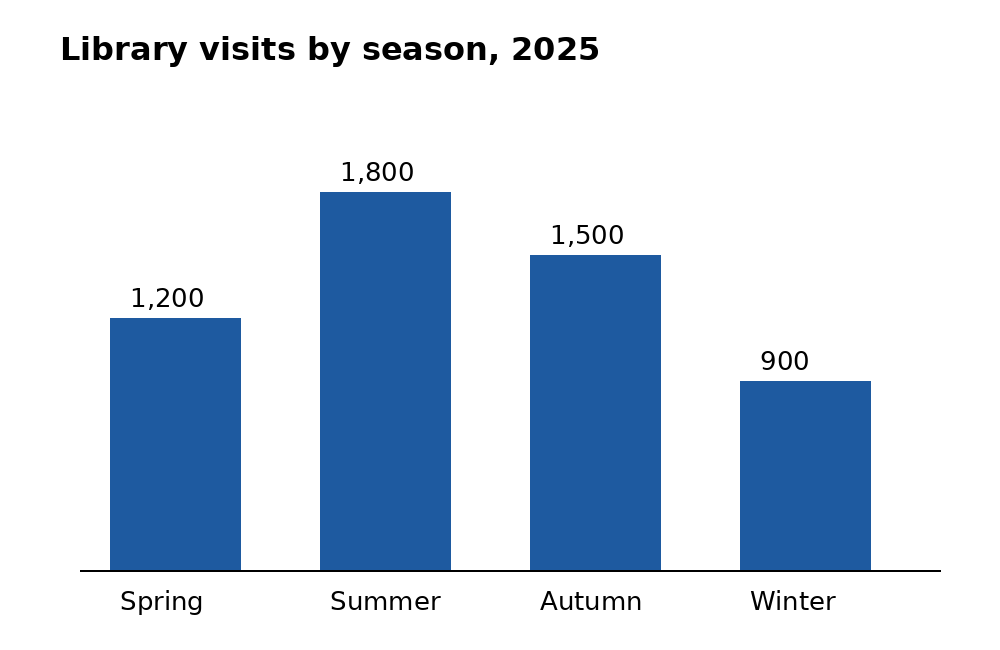
For this chart, check all four values: Spring 1,200; Summer 1,800; Autumn 1,500; Winter 900. A useful short summary is “Library visits peaked in summer at 1,800, twice the winter total of 900 in 2025.” Keep the full values in the long description and preserve the chart's words in the transcription. Choose what readers need for the intended use; AI advice is not a guarantee.
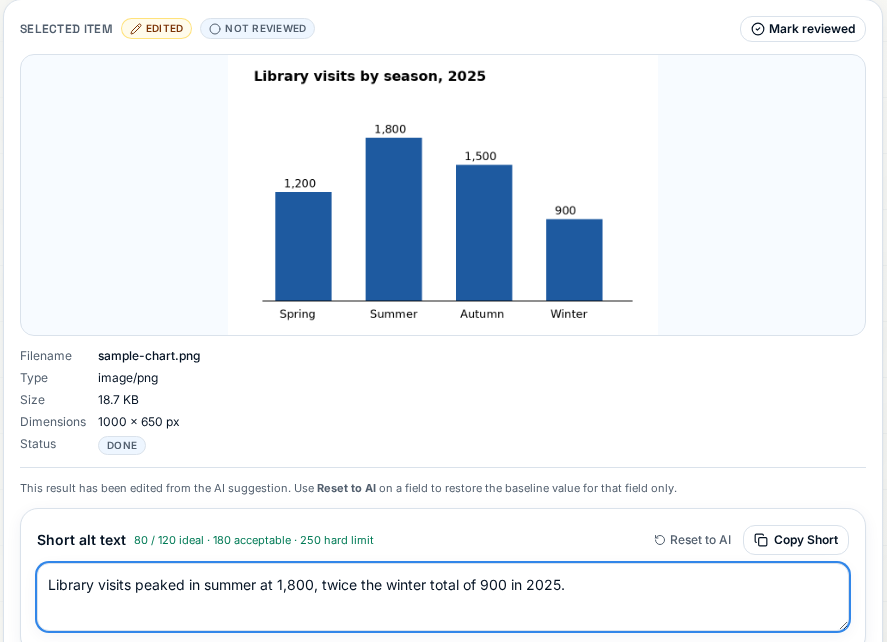 The real edited result names the peak and comparison. Reset to AI restores the original field without another AI call.
Select Mark reviewed after checking an image; this moves to the next unreviewed item. Mark not reviewed undoes the mark. Editing later currently keeps Reviewed, so check late changes yourself.
4. Essentials and Full review
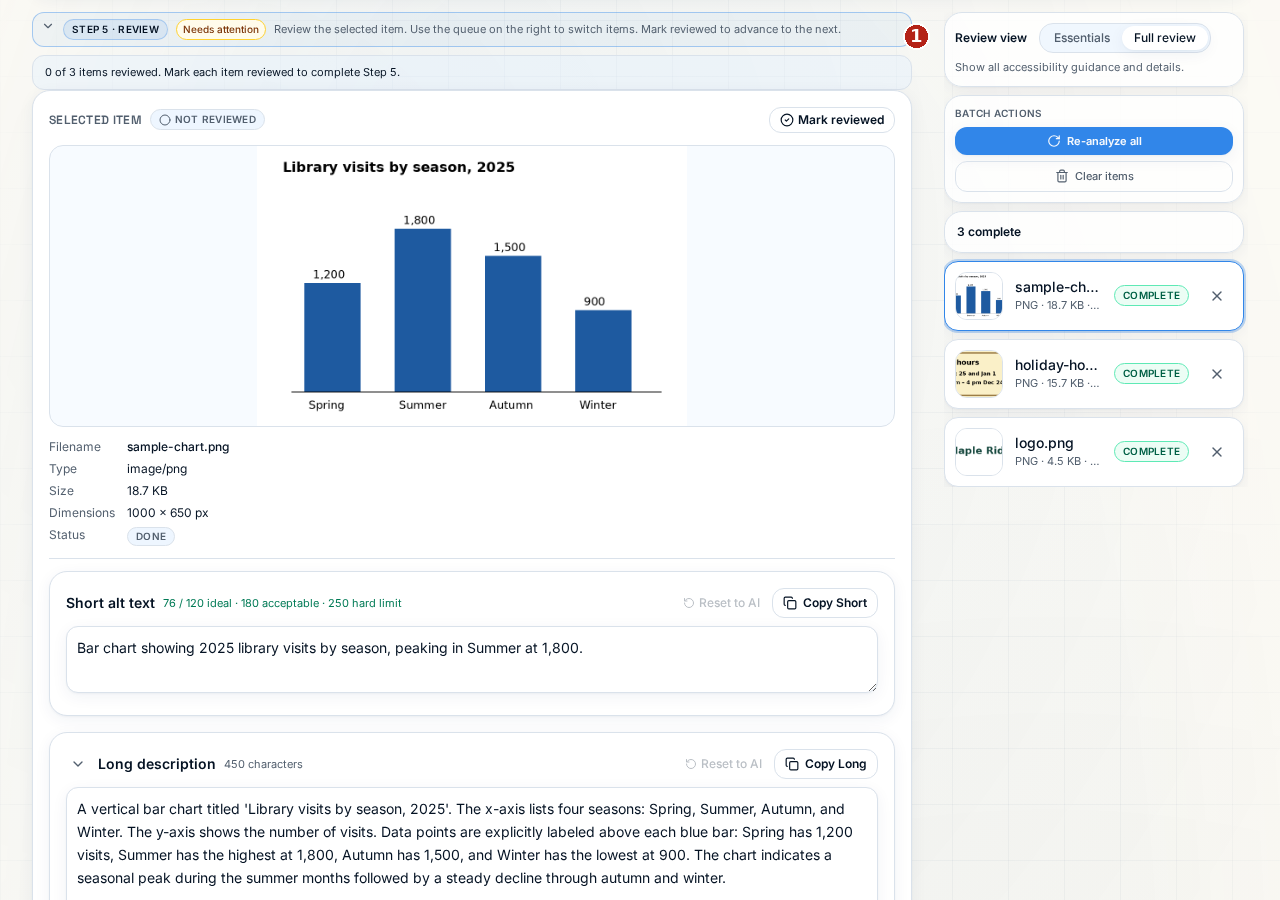
- Full review shows guidance and raw detected text in addition to editable fields. It calls the transcription Actual text, while Essentials calls it Text in this image.
Batch style buttons More concise / Balanced / More detailed change the shared style without starting analysis. The separate Regenerate action reruns the batch, not just the selected image. Re-analyze all in Batch actions on Steps 5–6 also reruns the batch and asks first when reviewed or edited items would be replaced. Successful re-analysis replaces fields and clears Reviewed marks. Export first to retain your edits.
This differs from focused Full review, where selecting a style initiates regeneration. See Essentials versus Full review.
5. Export your review
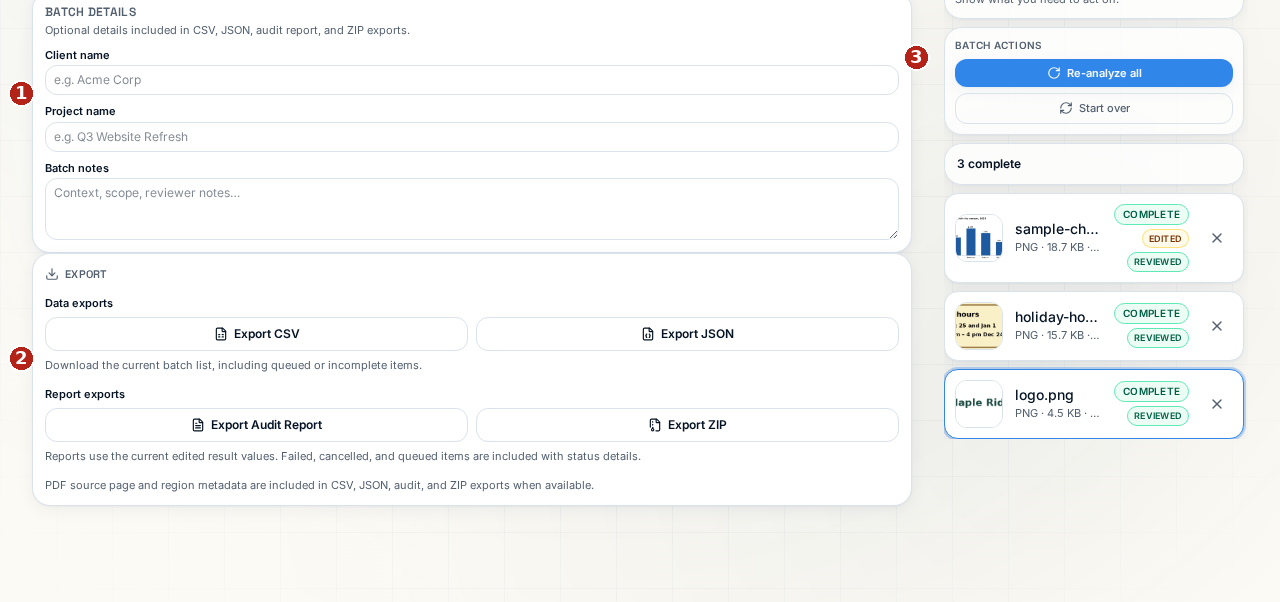
- Batch details — optional Client name, Project name and Batch notes are included in exports.
- Export CSV, Export JSON, Export Audit Report, Export ZIP — download your current review; no AI call. See Exports for filenames and intended uses.
- Start over — removes active work and uploads after confirmation. Export before using it.
6. Leaving and returning
Completed results, edits and Reviewed marks are saved in this browser, not an account history. On restoration, Restored previous batch session from this browser. appears. Browser storage can be cleared or unavailable, so export a file for a durable record.
Files are not saved. Needs re-upload means upload the same file again before re-analysis; it reconnects to the saved item. Do not assume an active run continues after leaving: it is cancelled on unmount, and restored processing items become cancelled. Completed results remain available if saved.
7. Clear or start over
Export first: these actions discard active results and Reviewed marks.
- Clear items in Batch actions on Steps 1–5 empties the queue without confirmation.
- Reset batch in Run Analysis resets the queue; it is not the focused Reset all setting reset.
- Start over on Step 6 asks Start over?, with Cancel and Start over, then clears active work including uploads.