Essentials vs Full review
The Review view selector switches between two presentations of the same result:
- Essentials — "Show what you need to act on."
- Full review — "Show all accessibility guidance and details."
Switching views never changes your data: the field values, your edits and your Reviewed marks are identical in both. The choice is remembered for the current browser tab only.
What each view shows
| Essentials | Full review | |
|---|---|---|
| Short alt text | Always | Always |
| Long description | When recommended or edited | Always (except confirmed decorative) |
| Image text | "Text in this image", when relevant or edited | "Actual text", always |
| Recommended output and why | Under More details | Shown directly |
| Detected text (raw OCR) | Under More details | Shown directly, with Copy Detected Text |
| Best practice tips, Standards checks, Reviewer notes | Not shown | Shown |
| Re-run analysis (focused) | Regenerate this item | More concise / Balanced / More detailed set the style and start regeneration |
| Re-run analysis (batch) | Separate Regenerate batch action | Style buttons only select the shared style; separate Regenerate reruns the batch |
| Full report | Under More details | Shown directly, with Copy Full Report |
Start in Essentials when you want to review and correct text quickly. Switch to Full review when you want the standards guidance, the raw OCR, or the reasoning behind the recommended output.
Batch example
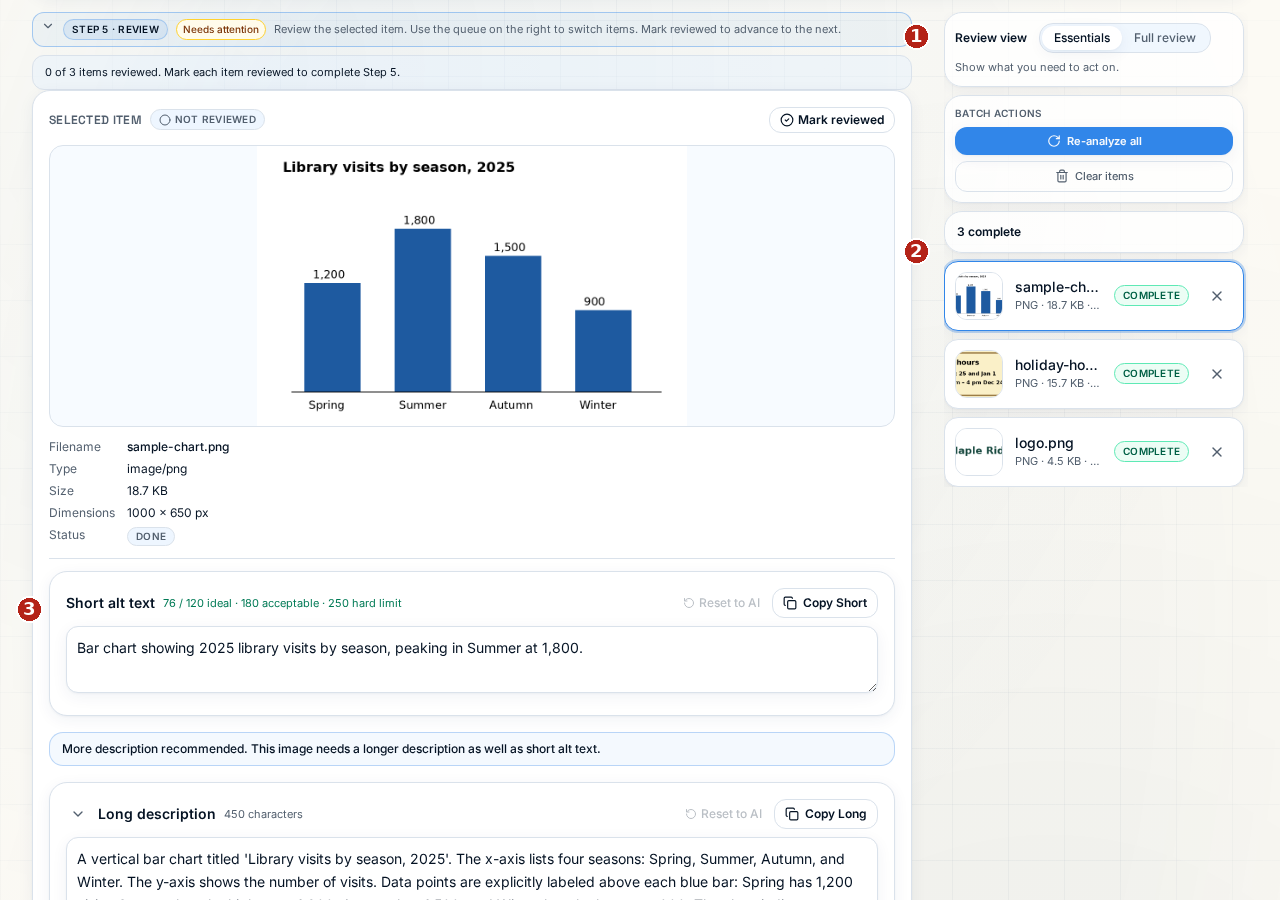
Callout 1 is the view selector, 2 the item queue, and 3 the short alt field. Both views share the same edits and Reviewed status. See the illustrated batch guide for regeneration differences.