Exports: which file to choose
Exports download a record of your review. They use your current edited values, they never call the AI, and you do not need to mark items reviewed to export. The time in each file name is your local time (YYYYMMDD-HHmm).
Focused (one image)
Under Export result:
| Button | File | Best for |
|---|---|---|
| Export JSON | alt-text-single-YYYYMMDD-HHmm.json |
Developers and systems; the full structured result |
| Export Audit Report | alt-text-single-audit-YYYYMMDD-HHmm.md |
A readable review record to file or share |
| Export CSV | alt-text-single-YYYYMMDD-HHmm.csv |
Spreadsheets; one row per result |
Batch and PDF (Step 6 · Export)
| Button | File | Best for |
|---|---|---|
| Export CSV | alt-text-batch-YYYYMMDD-HHmm.csv |
Spreadsheets; one row per image. Available once the queue has items. |
| Export JSON | alt-text-batch-YYYYMMDD-HHmm.json |
Developers and systems |
| Export Audit Report | alt-text-audit-YYYYMMDD-HHmm.md |
A readable record of the whole review. Available once at least one image has been analyzed (including failed or cancelled attempts, so the record is complete). |
| Export ZIP | alt-text-export-YYYYMMDD-HHmm.zip |
Everything in one download |
The ZIP contains four files: report.csv (the CSV), report.json (the JSON), audit.md (the audit report) and manifest.json (details of what was exported).
For PDF work, the page and region each image came from are included in the CSV, JSON and audit exports when available.
Copying is not exporting
The Copy buttons put text on your clipboard for pasting elsewhere; they do not save anything. If you need a record, export a file.
Batch export example
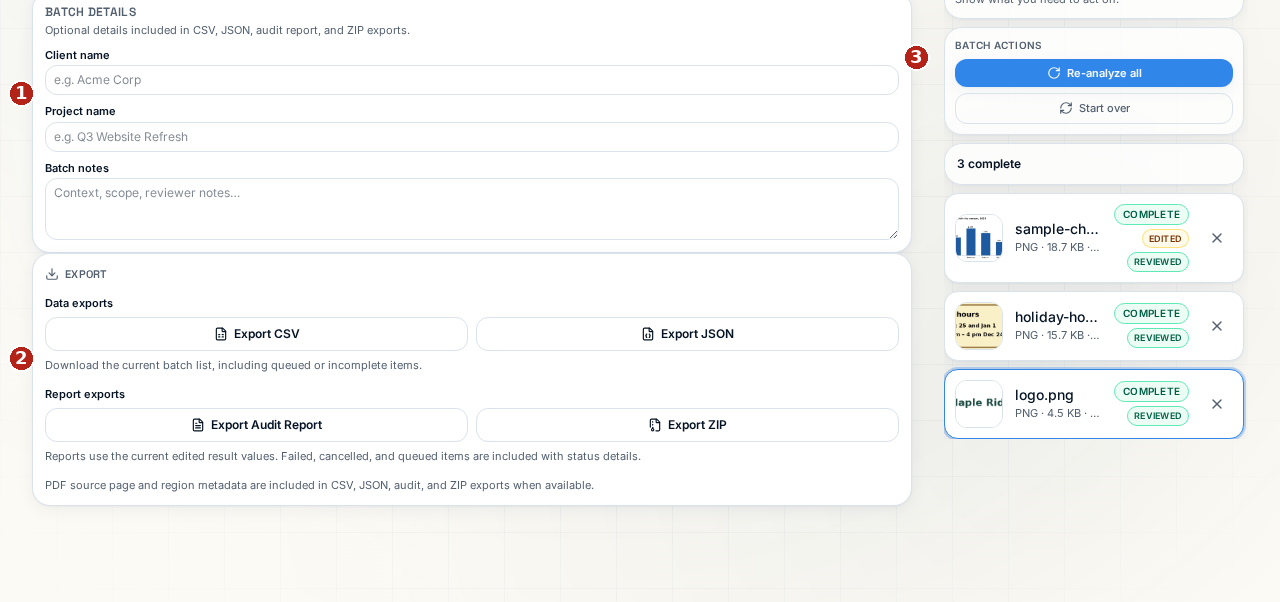
- Add optional Client name, Project name and Batch notes.
- Choose a download format.
- Export before Start over removes the active review.