Analyze and review one image (focused workspace)
This tutorial walks through analyzing a single image and reviewing the suggested alt text, from sign-in to export.
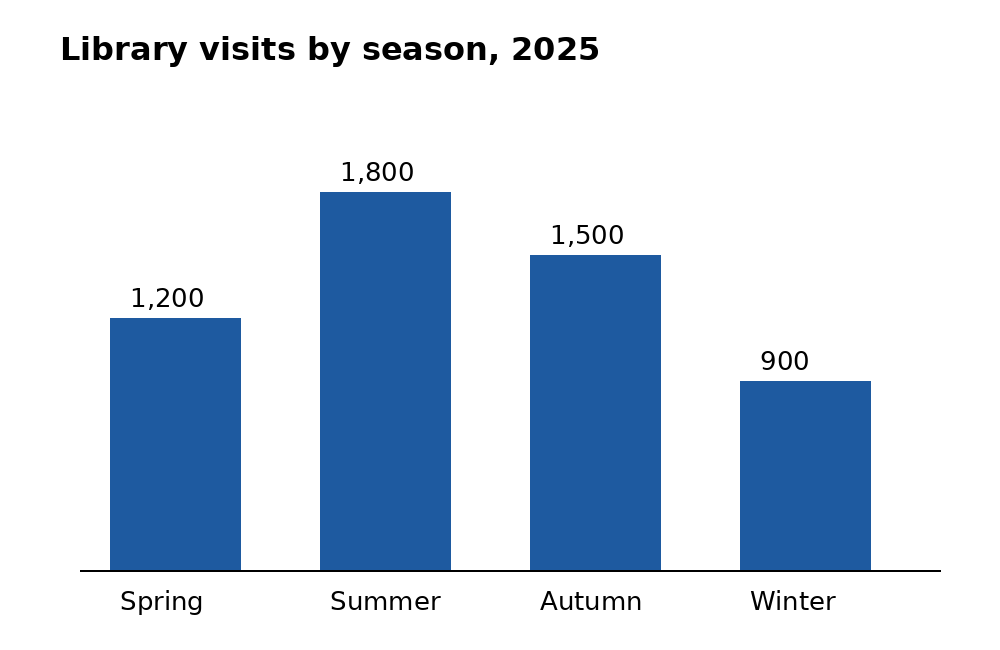
You will need: an AlternativeText beta account and one JPEG, PNG or WebP image up to 5 MB. Don't have one handy? Download the sample chart (invented data) and use that. Time: about 5 minutes.
1. Sign in
- Go to
alternativetext.comand select Open the Generator. - If you are not signed in, the Sign in page opens. Enter your Email and Password, then select Sign in. You land in the Generator.
- Forgotten your password? Select Forgot password?, enter your email, then select Send reset link. The email link opens a page where you choose a new password (at least 8 characters).
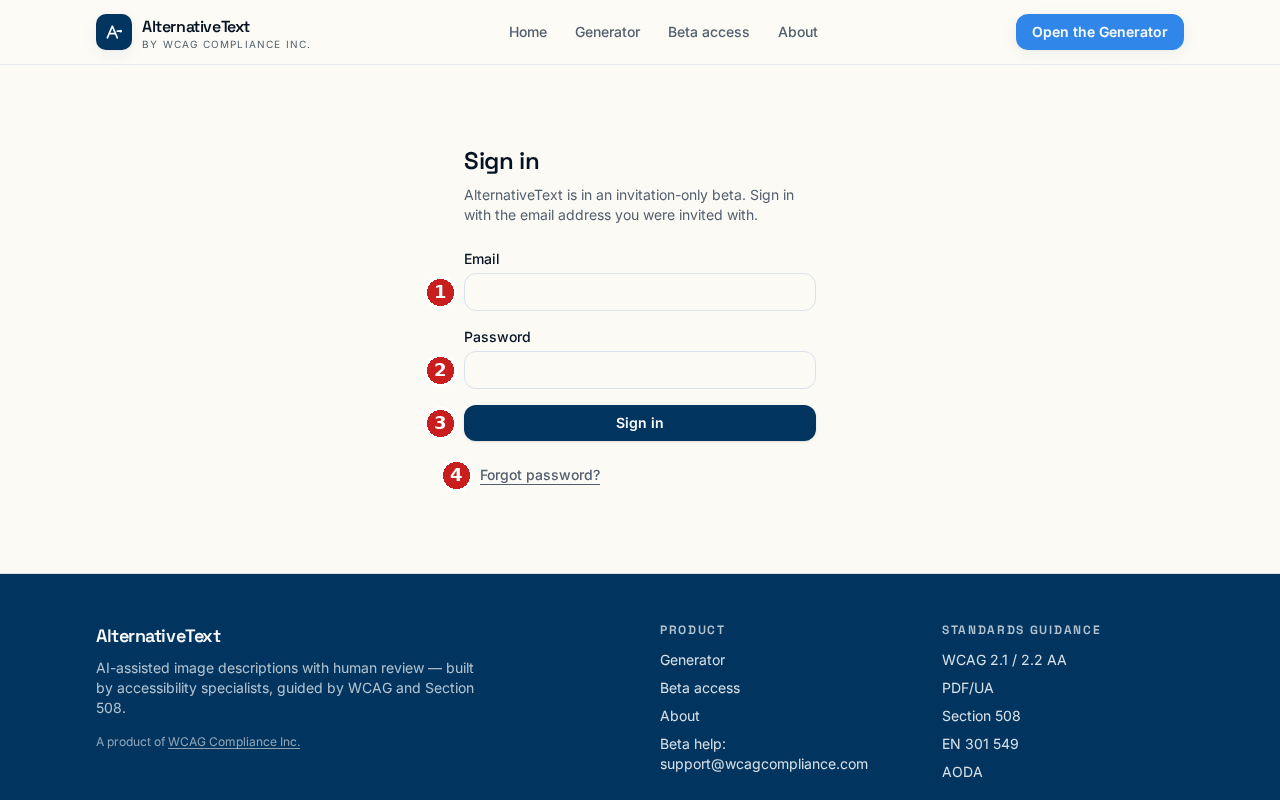 The Sign in page. AlternativeText is invitation-only during beta.
2. Add your image
- Drop one image onto Drop images or a PDF here, or click to upload, or click it to choose a file.
- One image opens the focused workspace (the label reads Workspace: Focused review). The file name, size and pixel size appear above the preview. Adding several images, or a PDF, opens the batch/document workspace instead.
- If your image’s longest edge exceeds 4096 pixels, it is scaled down automatically before analysis; the preview notes "downscaled".
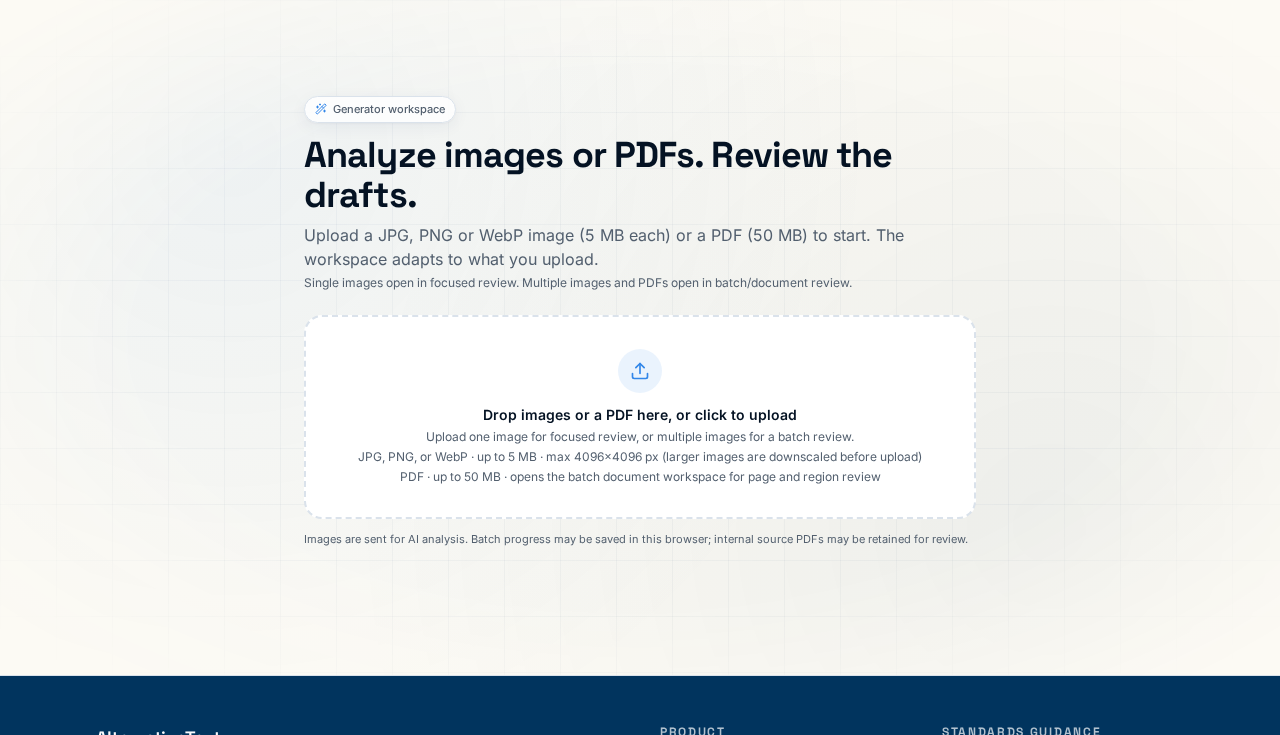 The Generator before you add anything.
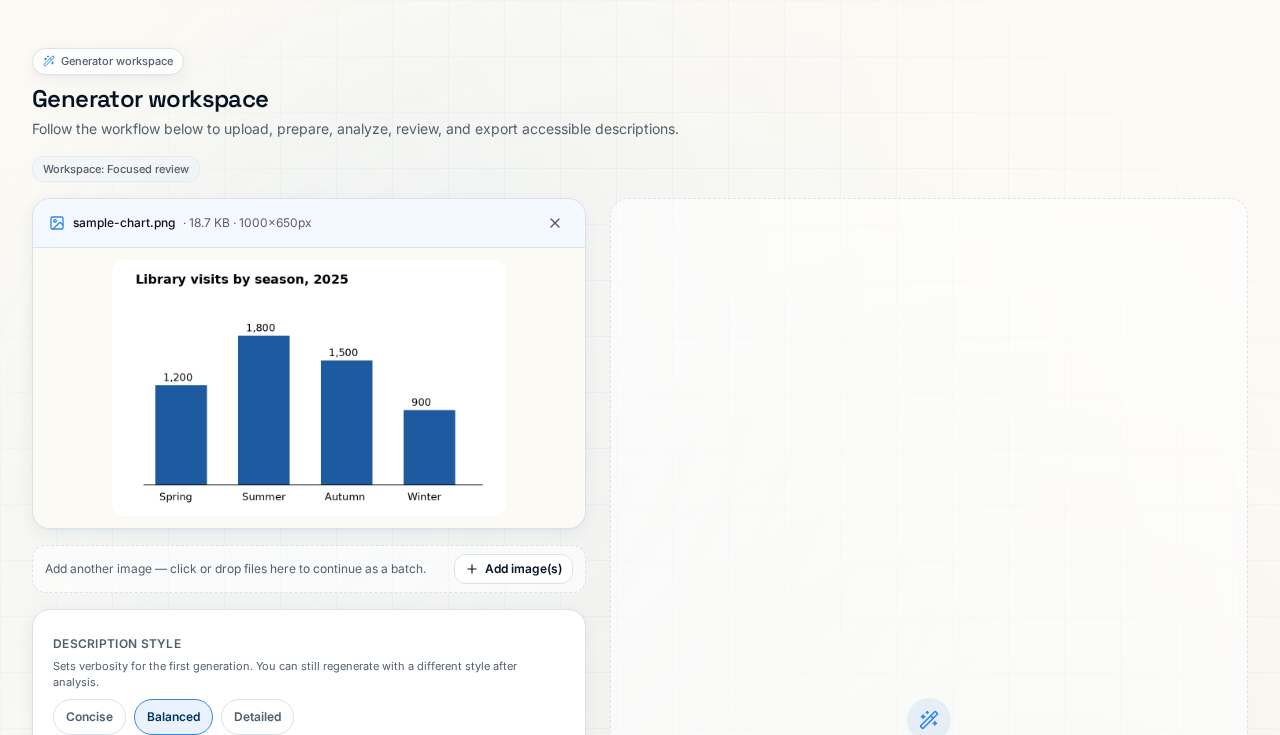 The image preview, with Add image(s) below it. Adding another image turns this into a batch.
3. Choose your settings (optional)
Settings apply to the next analysis only. Changing a setting does not change a result that has already been produced, and settings are locked while analysis runs.
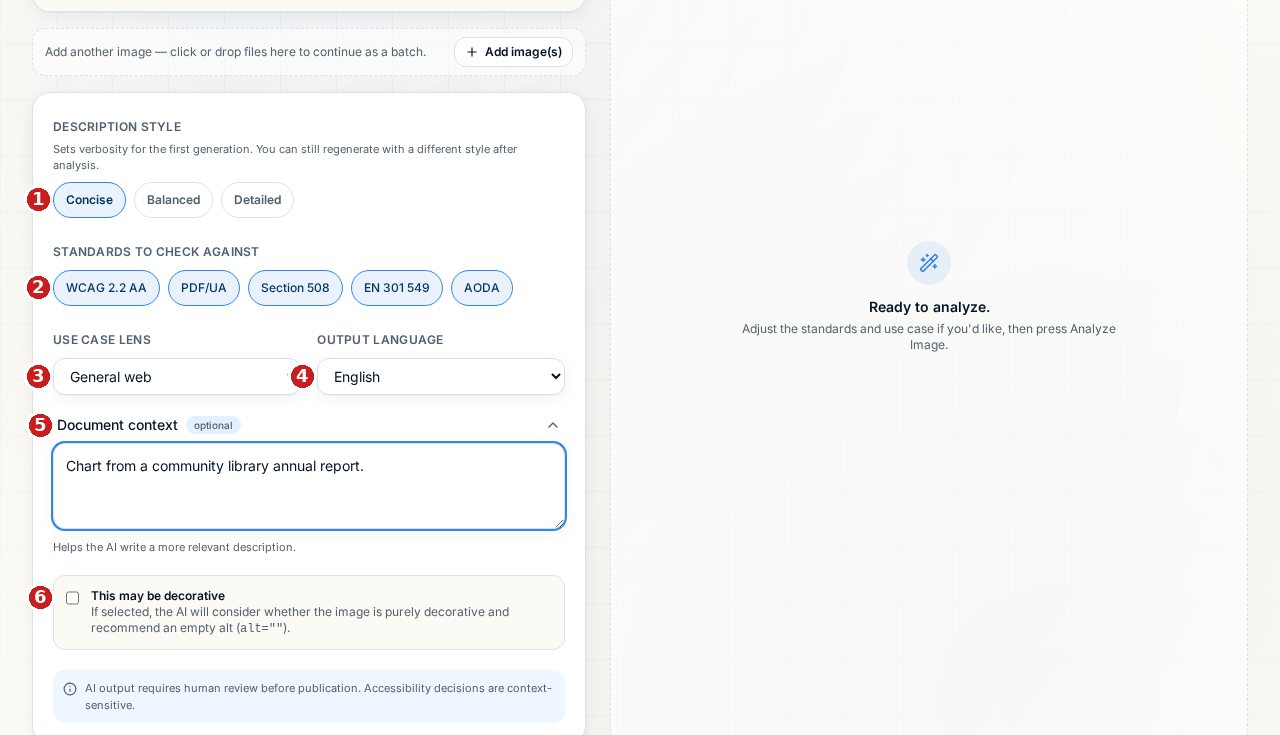 Concise selected and document context added for this example.
| # | Setting | Choices | Default | What it does |
|---|---|---|---|---|
| 1 | Description style | Concise, Balanced, Detailed | Balanced | How much detail the AI aims for in the short alt text. Concise suits simple images; Detailed suits charts and diagrams. |
| 2 | Standards to check against | WCAG 2.2 AA, PDF/UA, Section 508, EN 301 549, AODA (select any combination) | All five | Selects standards guidance for Full review; it is not a certification. Currently, deselecting every standard can still show all returned checks. |
| 3 | Use case lens | General web, Education, Government, Healthcare, E-commerce, Legal | General web | Tailors the guidance to where the image will be used — for example, Education adds course-material considerations, Government adds public-sector ones. |
| 4 | Output language | English, Français, Español, Deutsch, Português | English | The language of the suggested alt text and guidance. |
| 5 | Document context (optional; select to open) | Free text | Empty | Tells the AI where the image appears so the suggestion fits its surroundings. Example: "Chart from a community library annual report." |
| 6 | This may be decorative | Checkbox | Off | Tells the AI to consider recommending an empty alt (alt=""). An empty alt tells screen readers to skip the image entirely — appropriate only for images that add no information. You make the final decision during review. |
4. Analyze
- Select Analyze Image. The button changes to Analyzing… while the AI works. Analysis can take a little while; larger images and busy periods take longer.
- The result appears on the right when it is ready.
Analyze Image is the step that sends your image to the AI. The same applies to Regenerate this item later. Editing fields yourself, Reset to AI, and the Copy buttons never send anything to the AI.
5. Review and edit the result (Essentials view)
New sessions start in Essentials, which shows what you need to act on.
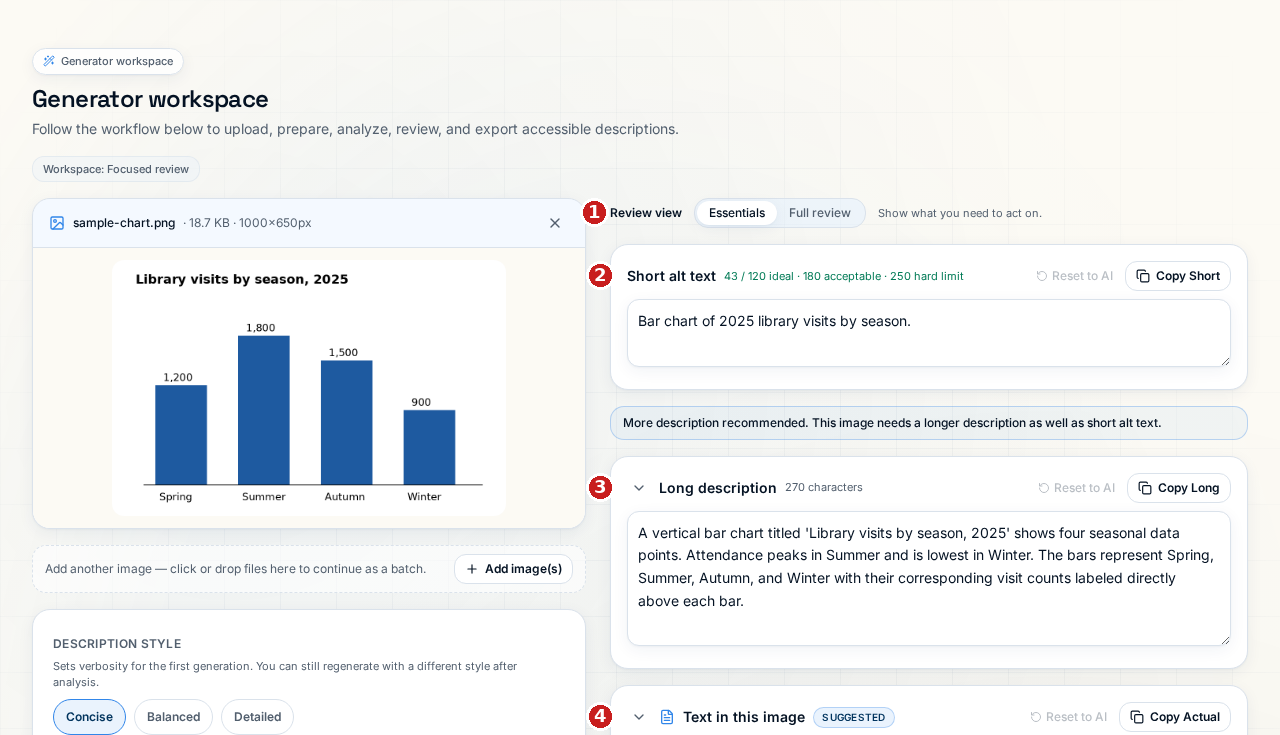
- Review view — switch between Essentials and Full review (see section 6).
- Short alt text — the suggested alt text, editable. The counter shows length against the app's own guidance: 120 characters ideal, 180 acceptable, 250 the hard limit. These are AlternativeText's guidelines, not WCAG requirements.
- Long description — shown when the image needs more than a short alt; a note above it says More description recommended (as for this chart).
- Text in this image — a reviewed transcription of words in the image, separate from the raw OCR.
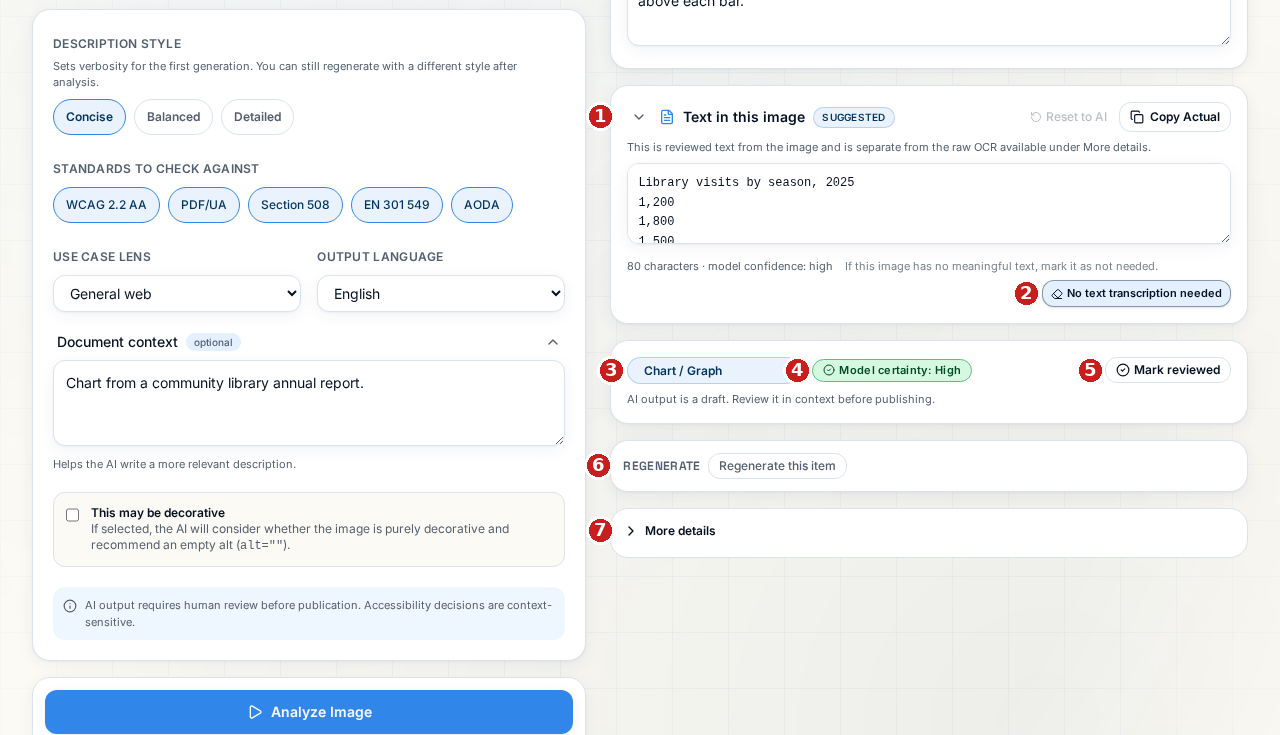
- Text in this image (continued) — check the transcription against the image.
- No text transcription needed — use only when there is no meaningful text; Re-enable editing undoes this.
- Classification — the image type (Informative image, Functional image, Chart / Graph, Infographic / Diagram, Complex / Other, Image of Text, Logo / Brand mark, Decorative image). Changing it updates the guidance and exports; it does not change the text.
- Model certainty: High / Medium / Low — how sure the model is about its own draft. It is not an accessibility score, and High certainty does not mean the text is correct.
- Mark reviewed — see section 7.
- Regenerate this item — runs the AI again (see below).
- More details — recommended output, why, raw detected text and Copy Full Report.
Check the draft against your image
The AI draft is a starting point, not a finished answer. Read it next to the image and check:
- Title and purpose. Does the short alt say what the image is for, in context? A draft like "A bar chart about library visits" names the topic but not the point.
- Categories and values. For charts, check the axis labels, categories and numbers. If the long description leaves out values a reader needs — for the sample chart, which season had the most visits and roughly how many — add them.
- Relationships. Note what a sighted reader would take away: trends, comparisons, outliers.
- What belongs where. Keep the short alt brief (the main point); put detail in the long description; put words that appear in the image in Text in this image.
Then edit the fields directly:
- Type into Short alt text, Long description or Text in this image.
- Reset to AI beside a field restores that field's AI draft. It is greyed out until you change the field, and it does not run the AI again.
 A meaningful edit of the same library chart: the short alt now explains the summer peak and its relationship to winter. Reset to AI is available. Put all four seasonal values in the long description: Spring 1,200; Summer 1,800; Autumn 1,500; Winter 900.
Regenerate this item runs the AI again with the current settings. It replaces every result field — including your edits — and clears the Reviewed mark. If you want a different style, change Description style in Settings first.
6. Essentials and Full review
Select Full review ("Show all accessibility guidance and details.") to show everything at once. Switching views changes only what is shown; the underlying result, your edits and your Reviewed marks are identical in both. Your choice is remembered for the current browser tab.
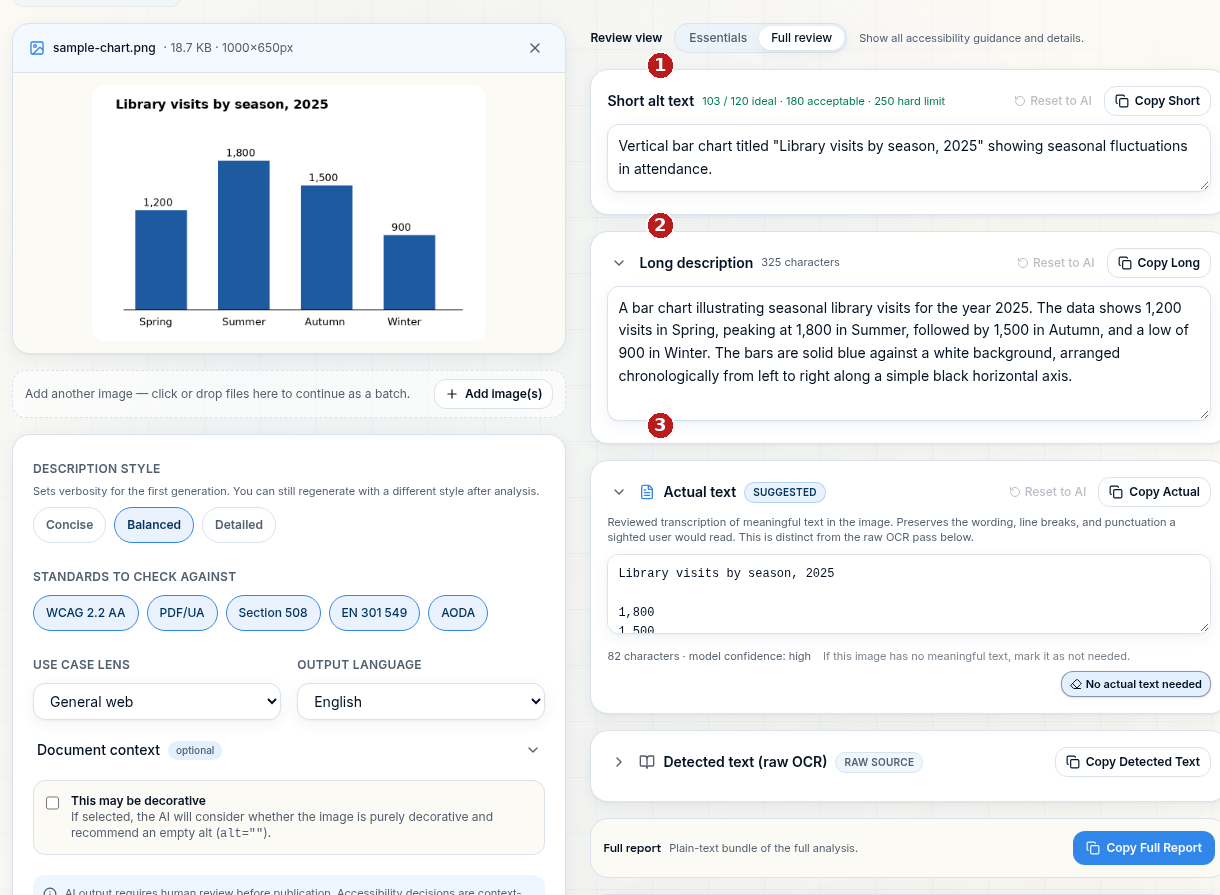 1 Short alt text. 2 Long description. 3 Actual text. The live draft describes the same seasonal library chart shown on the left; check every value against it.
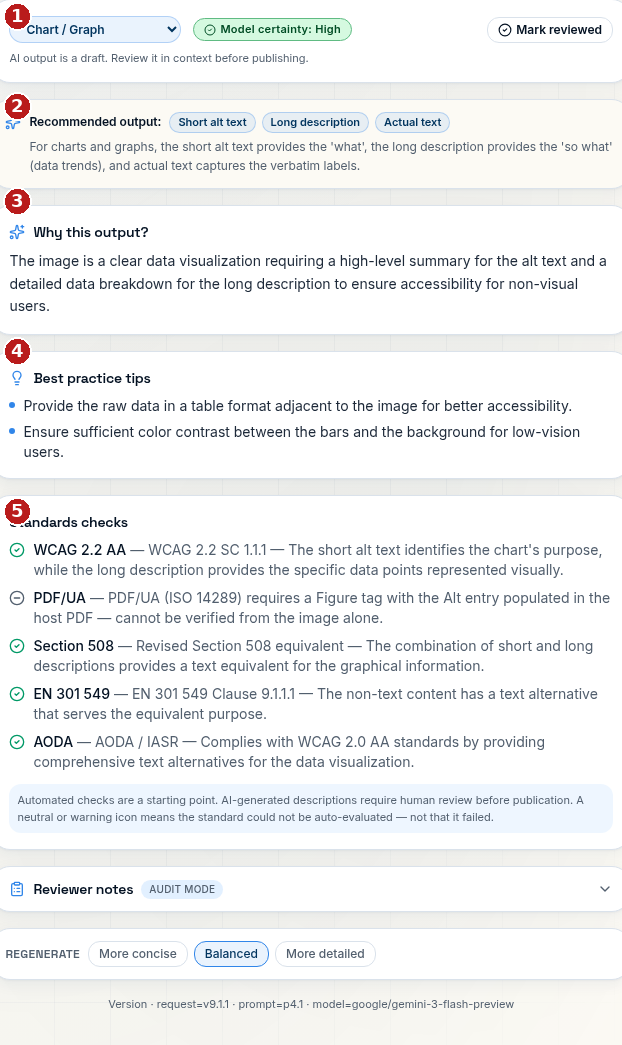 1 Classification, model certainty and Mark reviewed. 2 Recommended output. 3 Why this output? 4 Best practice tips. 5 Standards checks. These are suggestions to review, not certification.
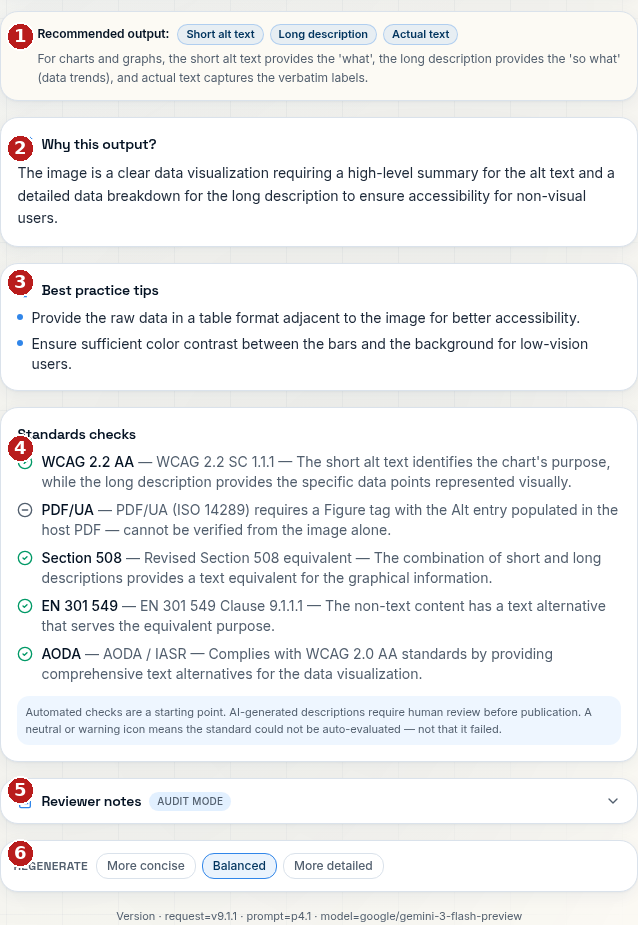 1 Recommended output. 2 Why this output? 3 Best practice tips. 4 Standards checks. 5 Reviewer notes. 6 More concise / Balanced / More detailed start a new focused analysis; export important edits first.
Full review adds:
- Actual text in place of the "Text in this image" heading, with No actual text needed.
- Detected text (raw OCR) with Copy Detected Text — the unreviewed machine reading.
- Recommended output and Why this output? — which field the app suggests using, and the reasoning. Treat these as suggestions to consider, not rulings.
- Best practice tips, Standards checks and Reviewer notes — guidance and an audit checklist for the standards you selected. A passing check is not a guarantee of compliance.
- The style buttons More concise / Balanced / More detailed in place of Regenerate this item. Selecting one sets that description style and starts a new analysis — like Regenerate, it replaces all fields and clears the Reviewed mark.
- Full report with Copy Full Report.
7. Copy and mark reviewed
- Copy Short, Copy Long, Copy Actual, Copy Detected Text and Copy Full Report put text on your clipboard so you can paste it where you need it; a message such as Copy Short copied to clipboard confirms it. Copying changes nothing, and a copied text is not saved anywhere — export a file if you need a record (section 8).
- Select Mark reviewed when you are happy with the item. A Reviewed badge appears and the button becomes Mark not reviewed (select it to undo). Note that editing a field after marking an item reviewed currently keeps the Reviewed status, so re-check the badge if you make late changes.

8. Export a record
Under Export result (left column, below Analyze Image):
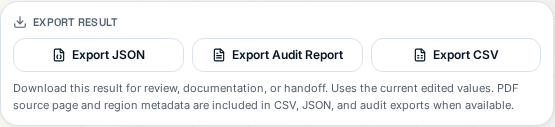
- Export JSON —
alt-text-single-YYYYMMDD-HHmm.json. The full structured result, for developers or systems. - Export Audit Report —
alt-text-single-audit-YYYYMMDD-HHmm.md. A readable record of the review, suitable for filing or sharing with colleagues. - Export CSV —
alt-text-single-YYYYMMDD-HHmm.csv. One row of results, for spreadsheets.
Exports use your current edited values. The time in the file name is your local time. You do not need to mark the item reviewed to export.
9. Remove the image or start over
Before you select either action: neither asks for confirmation. Export first if you need a record.
- The × button beside the file name (Remove image) removes the image and its result. Your settings (style, standards, use case lens, language, context) stay as they were, and the upload area returns.
- Reset all removes the image and result and restores the default settings: Balanced, all five standards, General web, English, empty context.